Fanslyアカウントを削除する方法は?

コンテンツクリエイターであれ、購読者であれ、Fanslyを退会する時が来るかもしれません。購読プラットフォームに費やす時間を減らしたいユーザーもいれば、プライバシー、請求、コンテンツ管理について懸念を抱いているユーザーもいるでしょう。理由は何であれ、アカウントを適切に削除する方法と、その後どうなるかを理解しておくことが重要です。
ワンクリックで簡単に削除できるプラットフォームとは異なり、Fanslyではアカウントを完全に削除するために、いくつかの慎重な手順が必要です。また、購入したメディアやアップロードしたコンテンツなど、重要なデータが失われないように注意する必要があります。
このガイドでは、Fanslyアカウントを削除する手順をステップごとに詳しく解説するとともに、削除前に必ず行うべき重要な事項についても説明します。さらに、重要なデータを失わないよう、強力なツールを使ってメディアをバックアップする方法もご紹介します。
1. Fanslyアカウントを削除する方法は?
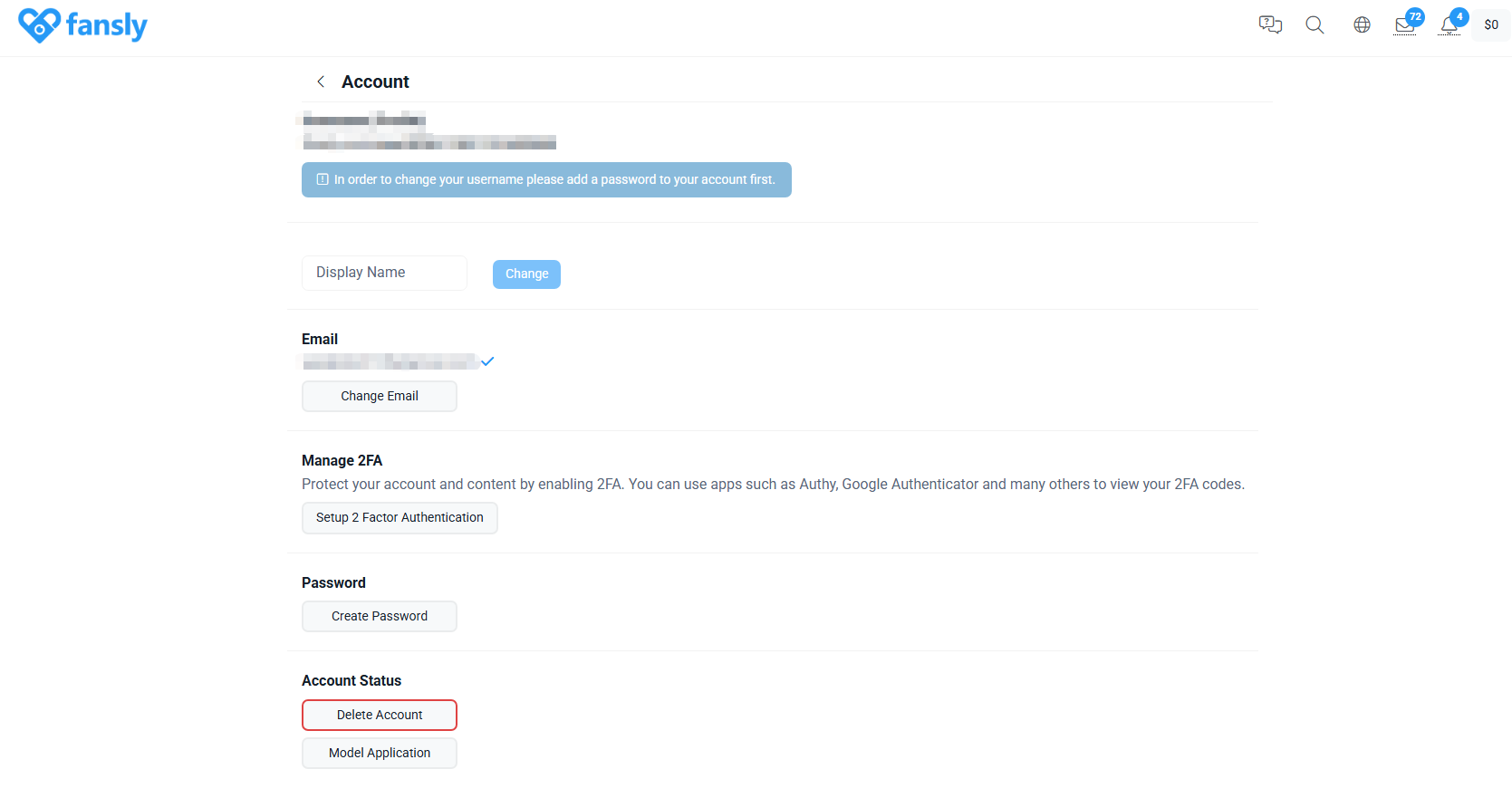
ステップ1:Fanslyアカウントにログインする
まず、Fanslyのウェブサイトにアクセスし、メールアドレスとパスワードを使ってアカウントにログインしてください。フィッシング詐欺のリスクを避けるため、必ず公式サイトにアクセスしていることを確認してください。
ステップ2:アカウント設定に移動します
ログインしたら、プロフィールアイコン(通常は右上隅)をクリックし、「 設定 ドロップダウンメニューから「」を選択すると、アカウント管理ページに移動します。
ステップ3:アカウントまたはセキュリティセクションに移動します
設定画面で、次のようなセクションを探してください。
- アカウント設定
- プライバシー
- 安全
Fanslyはインターフェースを随時更新することがありますが、アカウントの無効化または削除のオプションは通常、以下のいずれかのセクションにあります。
ステップ4:アカウント削除を依頼する
次のようなオプションが見つかるまでスクロールしてください。
- 「アカウントを削除」
- 「アカウントを無効にする」
それをクリックして、画面の指示に従ってください。以下の操作を求められる場合があります。
- パスワードをもう一度入力してください
- 決定を確認してください
- 退職理由を記入してください(任意)
ステップ5:有効なサブスクリプションをキャンセルする
削除が完了する前に、以下の点を確認してください。
- 有効なすべてのサブスクリプションをキャンセルします
- 自動更新をオフにする
これにより、今後の請求を防ぎ、アカウントを問題なく解約できるようになります。
ステップ6:メールで削除を確認する
Fanslyから、リクエスト内容を確認するための確認メールが送信される場合があります。メールを開き、確認リンクをクリックして削除手続きを完了してください。
ステップ7:処理が完了するまでお待ちください
確認後:
- アカウントは即座に無効化される可能性があります。
- プラットフォームのポリシーによっては、完全な削除には数日かかる場合があります。
この間、お客様のデータは通常、システムからの削除待ちのキューに格納されます。
2. アカウントを削除する前にすべき重要なこと
Fanslyアカウントを完全に削除する前に、以下の点を考慮してください。
2.1 購入したコンテンツを保存する
コンテンツを購入済みの場合、アカウントを削除するとアクセス権を失う可能性がありますので、保存しておきたいコンテンツは事前に必ず保存しておいてください。
2.2 アップロードしたメディアをダウンロードする(クリエイター向け)
クリエイターはバックアップを取るべきです:
- 写真と動画
- メッセージとファンとの交流
- アカウントデータと収益記録
2.3 残高の引き出し
クリエイターの方は、アカウントを閉鎖する前に、すべての収益を引き出していることを確認してください。
2.4 リンクされたアカウントの接続を解除する
セキュリティを強化するため、接続されているソーシャルメディアや決済方法の連携を解除してください。
3. ボーナス:FansgetでFanslyのすべてのメディアをバックアップする
アカウントを削除する前に、最も賢明な対策の一つは、Fanslyのメディアをすべてバックアップすることです。特にライブラリが大きい場合、ファイルを一つずつ手動で保存するのは時間がかかります。そこでFansgetの出番です。
ファンゲット これは、ユーザーがFanslyコンテンツを効率的にダウンロードおよび管理できるように設計された専用ツールです。
Fansgetの主な特徴:
- 一括ダウンロード: Fanslyの写真や動画を複数まとめて保存できます。
- 高品質ダウンロード: 可能な限り元の解像度を維持する。
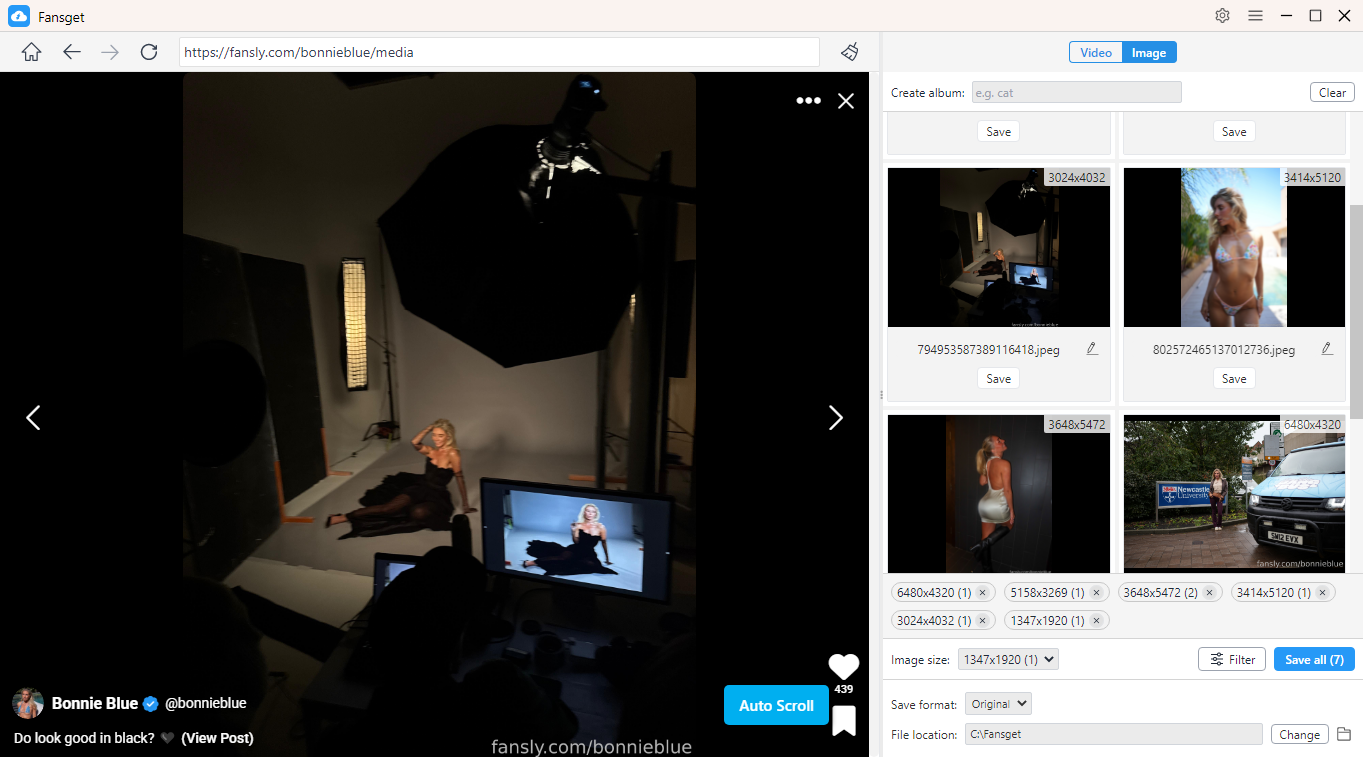
- 画像フィルター: サイズとフォーマットを選択して、対象画像を選びます。
- 複数のフォーマット: Fanslyの写真や動画を、人気のMP4、PNGなどの形式でダウンロードできます。
- ユーザーフレンドリーなインターフェース: 初心者でも簡単に使えます。
Fansgetを使ってFanslyの全メディアをダウンロードする手順:
- WindowsまたはmacOSデバイスにFansgetをインストールし、ソフトウェアを起動してください。
- 内蔵ブラウザを使用してFanslyアカウントにログインし、アクセス権のあるクリエイタープロフィールを開いてください。
- 「動画」セクションに移動し、動画を再生してダウンロードボタンをクリックしてください。Fansgetは動画を自動的にキューに追加し、まとめてダウンロードします。
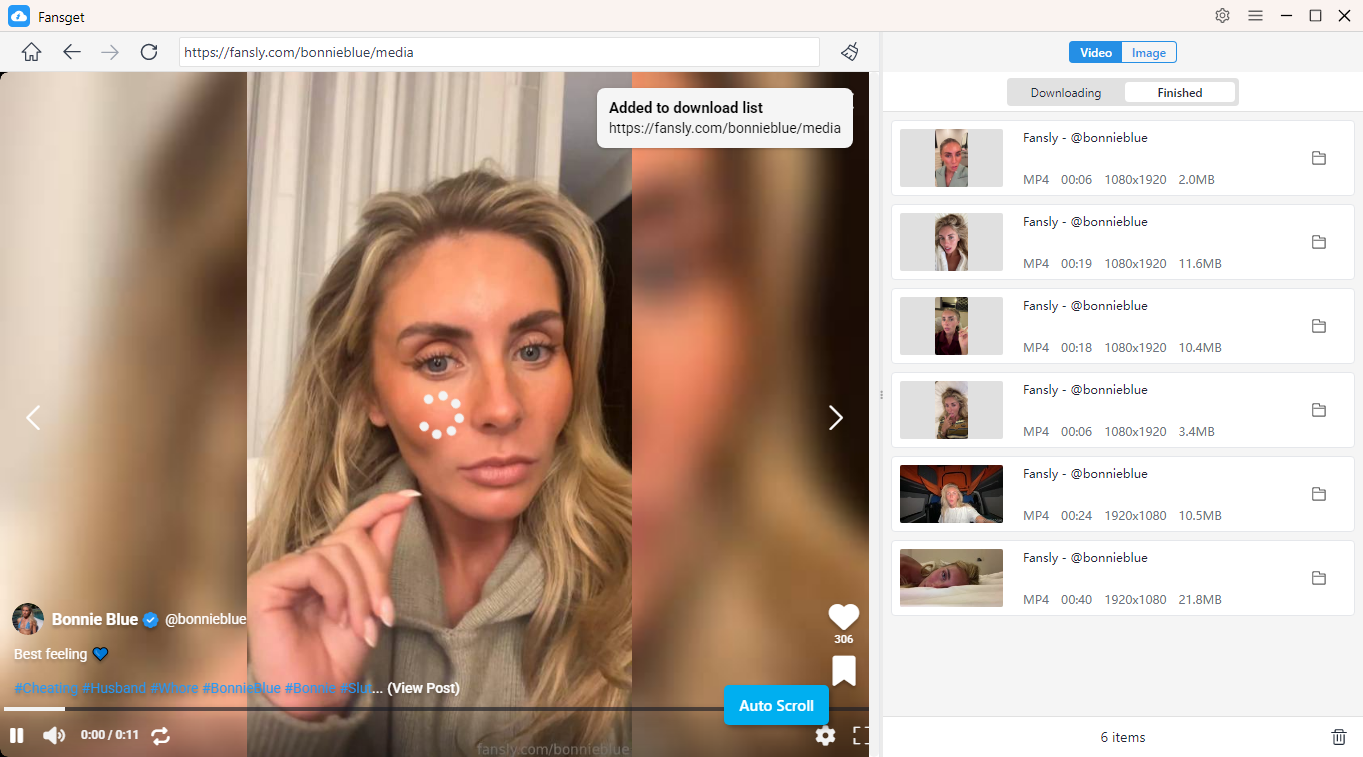
- 写真をダウンロードするには、Fansgetがページをスキャンして利用可能な画像を自動的に検出します。検出された画像はダウンロードパネルに表示され、そこで写真を絞り込んで選択し、まとめてダウンロードできます。
4.結論
Fanslyアカウントの削除は簡単な手続きですが、入念な準備が必要です。購読のキャンセルからメールでの削除依頼の確認まで、各ステップを踏むことで、アカウントが確実に削除され、予期せぬ料金が発生しないようにしています。
しかし、最も重要なステップがしばしば見落とされがちです。それはデータのバックアップです。アカウントが削除されてしまうと、コンテンツを復元する方法はありません。そのため、事前に信頼できるツールを使ってバックアップを取ることが不可欠です。
Fanslyを退会予定の方は、 ファンゲット 強くお勧めします。一括ダウンロード機能、使いやすさ、そして高品質な出力により、アカウント削除前にメディアを保存するのに最適なソリューションです。